Telegram already lets you long-press Send and pick a time. That is fine for one message. It is a weak content calendar when you run a channel, a private group, and a few DMs on the same clock as Instagram or X. Most third-party tools solve scheduling by asking you to create a BotFather bot and make it an admin. Your subscribers then see a bot name, not yours.
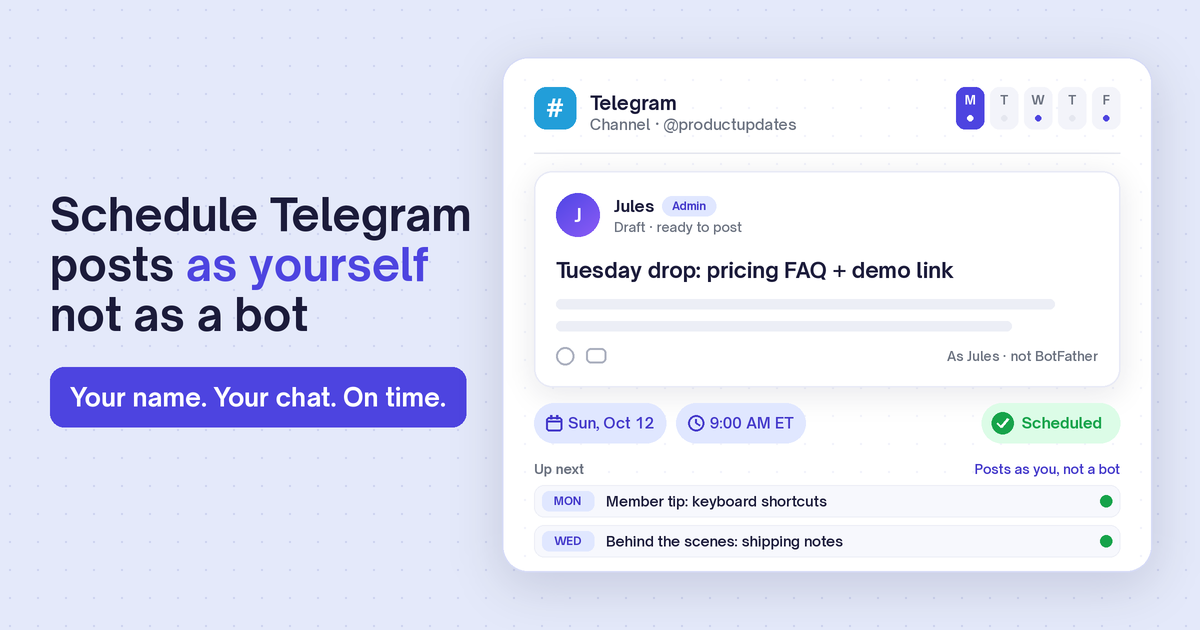
This guide shows how to schedule Telegram channel posts as yourself with Postlaty. You log in with your phone number, a login code, and two-step verification if you use it. You pick the person, group, or channel once at connect. Posts go out under your account, with optional photo or video, while you are offline. No BotFather bot. No second identity in the chat.
Why “schedule as yourself” matters on Telegram
Telegram’s native schedule is a one-shot delay. You write the message in the app, hold Send, and choose when it should leave. That helps when you are about to sleep and still want a morning update. It does not give you a week of drafts, a shared calendar with other networks, or a queue you can edit from a laptop while the phone is elsewhere.
The usual workaround from other tools is a bot. You talk to BotFather, create a bot, add it as admin on the channel, and schedule through that bot’s API. It works. The cost is identity: members see the bot’s name and avatar, not the founder account they already trust. For a personal brand, a paid community, or a product channel built around one voice, that mismatch is loud.
Postlaty takes the other path. It uses Telegram’s user Client API: the same login family as the official apps (phone, code, and optional two-step password). When a scheduled post fires, it sends as your user to the chat you picked at connect. The channel transcript looks like you typed it, because for Telegram’s purposes you did.
If you also post the same update to Instagram, Discord, or Bluesky, keep Telegram on the same composer. One writing session, several destinations, one calendar. That is the job native long-press Send was never built to do.
What you need before you connect
- A Telegram account with the phone number you use to sign in elsewhere. Country code included (for example
+1or+33). - Access to the chat you want to post in. That can be a channel you own, a group you can write to, or a person you already message. You pick exactly one destination when you connect.
- Your two-step password if you turned on Telegram’s cloud password. Postlaty will ask for it after the login code, the same way the official apps do.
- A Postlaty account. Each Telegram destination counts as one channel toward your plan, like any other network.
Connect Telegram with phone, code, and (if needed) 2FA
You never create a bot. In Postlaty you open Create, add a channel, and choose Telegram. The connect window walks through the same steps Telegram itself uses for a new device.
- Enter your phone number with country code and click Send login code. Telegram delivers the code in the Telegram app (or by SMS if Telegram chooses that path).
- Paste the login code and click Log in. If your account has two-step verification, Postlaty asks for that password next.
- Once you are in, Postlaty lists your recent chats. Pick the person, group, or channel that should receive scheduled posts. That destination is saved on the connection.
- Save. Telegram now appears in the channel picker next to your other accounts, labeled with the chat you chose.
Need a second destination later (for example a private ops group and a public channel)? Connect Telegram again and pick the other chat. Each connection is one plan channel and one fixed destination. Posts do not hop between chats per schedule item.
If the chat list is empty, open Telegram on your phone once so dialogs are active, then refresh in the connect window. If login fails after a flood wait, Telegram is rate-limiting; wait the suggested time and try again.
Schedule your first Telegram post
- Open Create and select the Telegram channel you connected. Add Instagram, X, Discord, or anything else if the same update should go wider.
- Write the message. Keep the first line scannable; channel subscribers skim on mobile. You can post text alone, or attach a photo or video. When media is attached, Postlaty sends the first file with your caption.
- Pick a date and time, then click Schedule. The post lands on your Calendar with the rest of the week.
- At the scheduled time, Postlaty sends the message as your Telegram user into the chat you picked at connect. Members see your name and avatar, not a bot.
Prefer to automate? The same connection works through the Postlaty API and MCP, so an agent can queue Telegram posts after you have linked the account. Tokens stay in Postlaty; the agent never sees your Telegram password.
Build a Telegram content calendar that still sounds like you
A channel dies when every post is a product dump. Treat Telegram like a newsletter you send in short bursts: one clear idea, one link if needed, and a voice people recognize. Scheduling helps because you can batch a week while the ideas are fresh, then let the clock do the publishing.
A simple weekly mix that works for founders and community operators:
- Ship note. What changed, why it matters, one screenshot or short clip if it helps. Schedule it for the morning your audience is awake.
- FAQ or tip. Answer the question you keep getting in DMs. Text-only is fine; attach a photo when a visual makes the tip land faster.
- Behind the scenes. Desk photo, draft UI, or a 20-second video of a feature in progress. Postlaty can send photo or video as the first attached file.
- Cross-post with care. Reuse the idea on Instagram or Bluesky, but rewrite the caption. Telegram can hold a longer note; other networks often cannot.
Native Telegram schedule still has a place for last-minute one-offs. Use Postlaty when the post is part of a real calendar: multiple days queued, media prepared, and the same update mirrored to public socials. That is when “as yourself” beats “as a bot admin.”
Keep an eye on the connected chat
Scheduling gets the message out. Conversation still happens in the chat. Postlaty can pull recent messages from the destination you connected into Inbox, and you can reply from there as the same user. Analytics for Telegram focus on that chat’s latest activity, not channel-wide view counts.
If you need a different destination, reconnect and pick another chat rather than trying to retarget a single connection per post. One connection, one place posts land — that keeps the identity story simple.
Good to know
- Posts send as your Telegram user, not as a Postlaty bot or a BotFather bot.
- The destination (person, group, or channel) is chosen once at connect.
- Text-only posts work. Photo or video is optional; when you attach media, the first file is sent with the caption.
- Login uses phone number, login code, and two-step password when your account has one.
- Inbox and analytics follow the connected chat, not every Telegram chat on your account.
Frequently asked questions
Can you schedule Telegram channel posts as yourself?
Yes. Telegram’s native long-press Send delays one message. For a real calendar, connect your Telegram account in Postlaty with phone login, pick the channel (or group or person) once, then schedule. Posts go out as your user, not as a bot.
Does Postlaty post to Telegram with a BotFather bot?
No. Postlaty logs in as your Telegram user with phone number, login code, and two-step password if you use one. You never create a bot or add a bot as admin.
Which Telegram chat do scheduled posts go to?
The person, group, or channel you pick at connect. That destination is fixed on the connection. To post somewhere else, connect Telegram again and choose another chat.
Can I attach photos or videos to scheduled Telegram posts?
Yes. You can send text alone, or attach a photo or video. When media is attached, Postlaty sends the first file with your caption.
Do I need two-step verification to connect?
Only if your Telegram account already has a cloud password. Postlaty asks for it after the login code, the same way the official apps do.
Can I schedule the same update to Telegram and Instagram together?
Yes. Select both channels in the Postlaty composer, adjust the caption for each audience if you want, and schedule them for the same time.
More detail on the connection lives on the Telegram channel page. To see every network Postlaty publishes to, browse all channels. If you also schedule short video for TikTok, Reels, and Shorts, read how to post one 9:16 file across those apps.
Schedule Telegram as yourself, not as a bot
7-day free trial. Connect with your phone, pick a chat, and queue posts next to Instagram, X, Discord, and more from one composer.
Start Free Trial