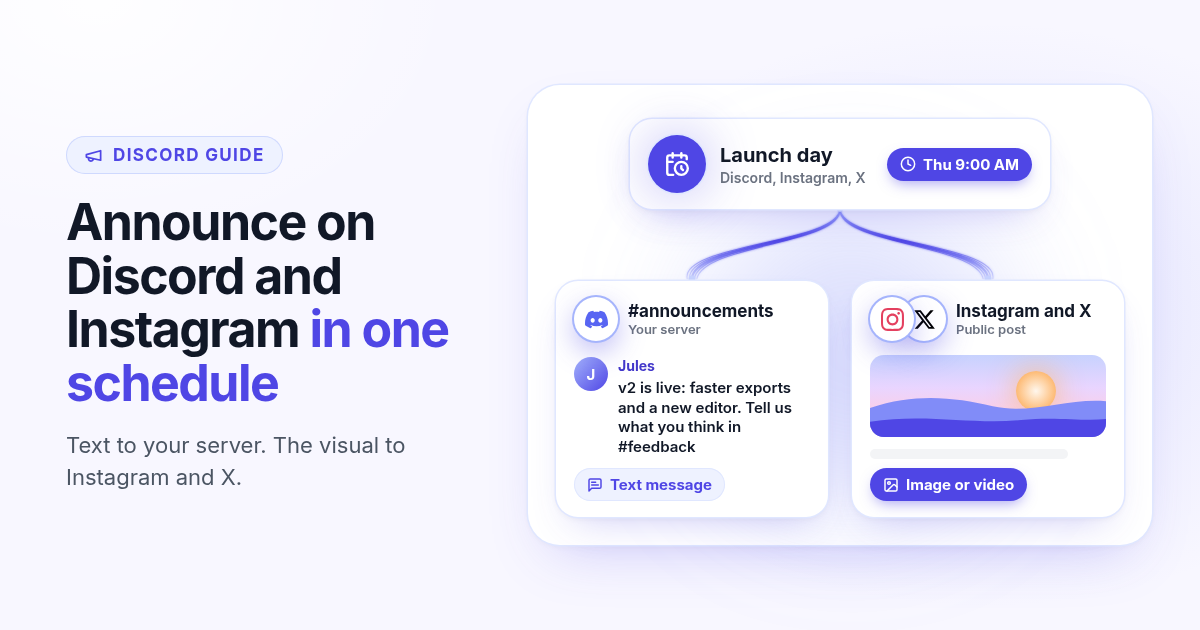
Launch day has two audiences. Your community on Discord wants the inside version: what shipped, where to give feedback, what changes for them. Your public audience on Instagram and X wants the hook and the visual. Most founders handle this with two tabs and a reminder. The Discord message goes out at 9:02, the Instagram post at 9:40, and the X post when someone in the server asks why it is not on X yet.
This guide shows how to schedule a Discord announcement and the public social post together from one queue in Postlaty. You add the Postlaty bot to your server once, pick the channel that should receive announcements, and then every schedule can carry a text message for Discord plus the image or video version for Instagram, X, and the rest of your channels.
Why the Discord message and the public post drift apart
The two posts are written on different days in different apps. The Instagram caption gets drafted in a scheduler with the image. The Discord announcement gets typed live, because that is where the community is. The result is predictable: the timing slips, the details differ, and the people who care most sometimes hear the news last.
Members should hear first
Your paying users and early fans live in the server. Finding out from a public post feels like an afterthought.
Same news, two tones
Discord wants context and a next step. Instagram and X want a hook and a visual. One draft can serve both if you plan it.
One clock
When both posts sit on the same schedule, you pick the order once (Discord first, public a few minutes later) and stop babysitting it.
One place to check
A shared queue shows what is going out this week across the server and every public profile.
What Discord can and cannot schedule on its own
Discord lets you schedule events, but there is no built-in way for a member to write a regular channel message and have it send later. The usual workarounds are bots and webhooks. They work, but they only talk to Discord. You still schedule the Instagram post, the X post, and the LinkedIn post somewhere else, which brings back the two-calendar problem.
The fix is to treat the Discord channel as one more destination in the same queue as your social profiles. That is what Postlaty does: Discord shows up next to Instagram and X in Create, and one schedule can include all of them.
Connect Discord and pick the channel
The connection uses Discord's standard Add to Server flow. You need permission to add apps to that server (server owners and admins have it).
- 1
Start the connection in Postlaty
Open Create, add a channel, and choose Discord. A Discord window opens.
- 2
Choose the server
When Discord asks Add to Server, pick the server where announcements should go, then click Authorize. This adds the Postlaty bot to that server.
- 3
Pick the announcement channel
Postlaty lists the server's text and announcement channels. Pick one, for example
#announcementsor#updates. If the server has a single text channel, it is selected for you. - 4
Check the bot can post there
For a private channel, give the Postlaty bot role access in the channel settings. A public channel works as soon as the bot joins.
The channel you pick at connect is where every Discord post from that connection lands. Want a second server? Connect again and choose that server. Want a different channel in the same server? Reconnect and pick the new one. More setup notes are on the Discord channel page.
Text on Discord, media on Instagram and X
This is the one rule to plan around. Postlaty sends Discord posts as text messages. Images and videos go to the networks that take them. When a schedule includes Discord and Instagram with an image attached, Instagram publishes the image and Discord gets the caption you wrote for it. The composer tells you which channels will get the caption only before you schedule.
Discord
Text message in the channel picked at connect, up to 2,000 characters. Links in the text unfurl as a preview the way Discord normally shows them.
Needs media: an image (the first file is used) or a video as a Reel. Captions up to 2,200 characters.
X
Text, multiple images, or a video. The 280-character limit is the tight one, so write X last.
Everyone else
LinkedIn, Threads, Facebook, and Bluesky can ride the same schedule with their own caption and media rules.
In practice this works well for announcements. The visual does its job on the public networks. On Discord, a link to the changelog, the demo, or the landing page gives members a preview card and a place to click, which is usually what they want anyway.
Schedule the announcement and the public post together
- 1
Open Create and select the channels
Pick your Discord connection, your Instagram account, and your X account. Add LinkedIn or Threads if the news should go wider.
- 2
Attach the visual
Upload the image or the short video for Instagram and X. Discord will not attach it, so the text has to stand on its own there.
- 3
Switch to Different captions
Flip the toggle from Same caption to Different captions. Each channel starts with your draft, then you edit Discord, Instagram, and X separately.
- 4
Pick the time and schedule
Choose a date and time, then click Schedule. If members should hear first, schedule Discord at the top of the hour and the public post a few minutes later as a second schedule.
Prefer to let an agent do the queueing? Once Discord and your social accounts are connected, the Postlaty API and MCP can schedule the same destinations. The agent never sees the Discord bot token or your social logins.
Write one message per audience
The same news, written twice in two tones, beats one caption pasted everywhere. A simple split:
Discord: context and a next step
Say what shipped, who it is for, and where to reply. Use line breaks and short bullets. End with a link or a question for the thread.
Instagram: the hook and the visual
First line carries the news. The image or Reel does the explaining. Point to the link in your bio rather than pasting it in the caption.
X: one sentence and one link
Cut the Discord version down to the headline. Add the link and stop. Thread it later if people ask.
Mentions on Discord
Whether @everyone or a role mention pings depends on the permissions your server gives the bot role. Test once in a quiet channel.
After it goes live
The announcement is the start of the conversation. Postlaty reads the latest messages in the connected Discord channel into Inbox under Messages, so you can see reactions to the news next to Instagram comments and X replies, and answer in the channel without switching apps. Analytics for Discord show reactions and thread replies on that channel.
A useful habit for launches: check Inbox thirty minutes after the schedule fires. Answer the Discord questions first (those are your most engaged users), then the public comments. Questions that come up twice belong in your next announcement.
Good to know
Discord connects through the standard Add to Server flow, then you pick one channel.
One channel per server connection. Reconnect to change it, or connect another server.
Discord posts are text, up to 2,000 characters. Images and videos go to the other networks.
Private channels need the Postlaty bot role to have access.
In an announcement channel, following servers get the message only after it is published in Discord.
Inbox shows recent messages from the connected channel and lets you reply there.
See every network Postlaty supports on all channels, or read the Instagram and X channel pages for their media rules. Running a Telegram channel too? Read how to schedule Telegram posts as yourself.
FAQ
Frequently Asked Questions
Discord has scheduled events but no built-in scheduled send for regular channel messages. With Postlaty you connect a server channel once, write the message in Create, pick a time, and Postlaty posts it to that channel on schedule.
Open Create, add a channel, and choose Discord. In the Discord window pick your server under Add to Server and click Authorize, then choose the text or announcement channel that should receive posts. You need permission to add apps to that server.
Yes. Select your Discord connection and your Instagram account together in Create, attach the image or video, switch to Different captions, and schedule one time. Instagram publishes the media and Discord gets your text.
Not in Postlaty. Discord posts are text messages up to 2,000 characters. A link in the text shows Discord's usual preview card. Images and videos publish on the networks that support them, such as Instagram and X.
The channel is chosen at connect. To post somewhere else in the same server, reconnect and pick the new channel. To post in another server, connect that server as its own channel.
Yes. Recent messages from the connected channel appear in Inbox under Messages, and you can reply to the channel from there. Analytics show reactions and thread replies.
Blog
More articles
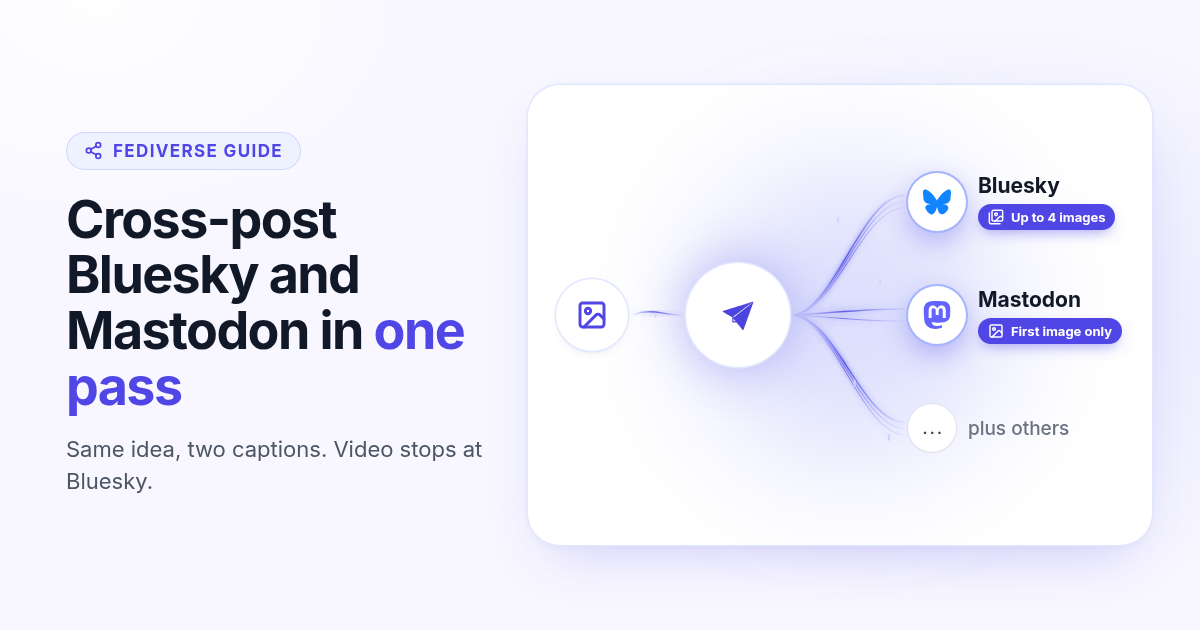
How to cross-post to Bluesky and Mastodon (and where video fails)
Cross-post Bluesky and Mastodon from one composer. Connect with an app password and a server token, share one still, and know why a Bluesky video will not publish as Mastodon video.
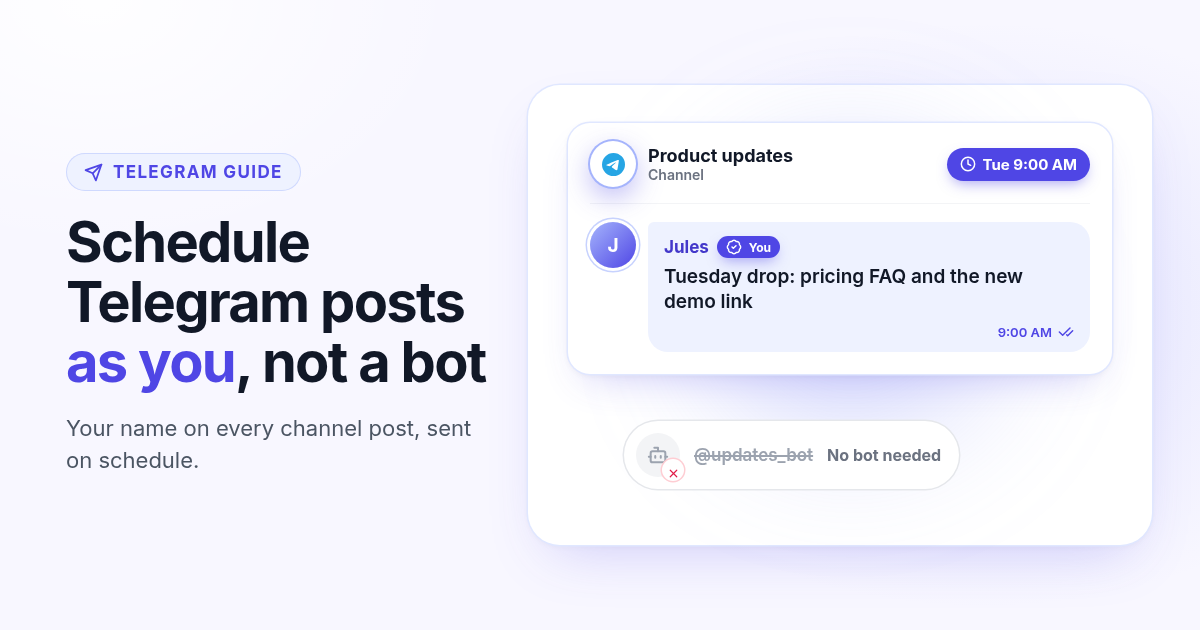
How to schedule Telegram channel posts as yourself (not as a bot)
Native Telegram schedule works for one message. Most tools post as a BotFather bot. Here is how to connect with your phone, pick a chat, and schedule posts as yourself with Postlaty.
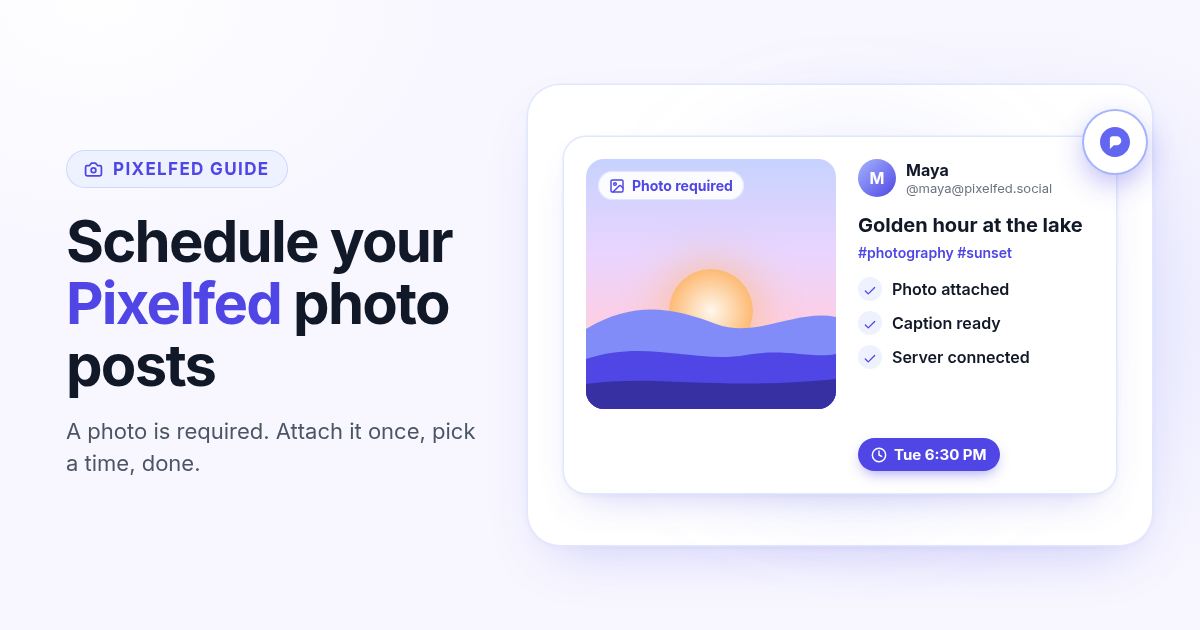
How to schedule Pixelfed posts (a photo is required)
Pixelfed is photo-first and has no real content calendar. Here is how to connect any server with an access token, attach a photo, and schedule posts ahead with Postlaty.
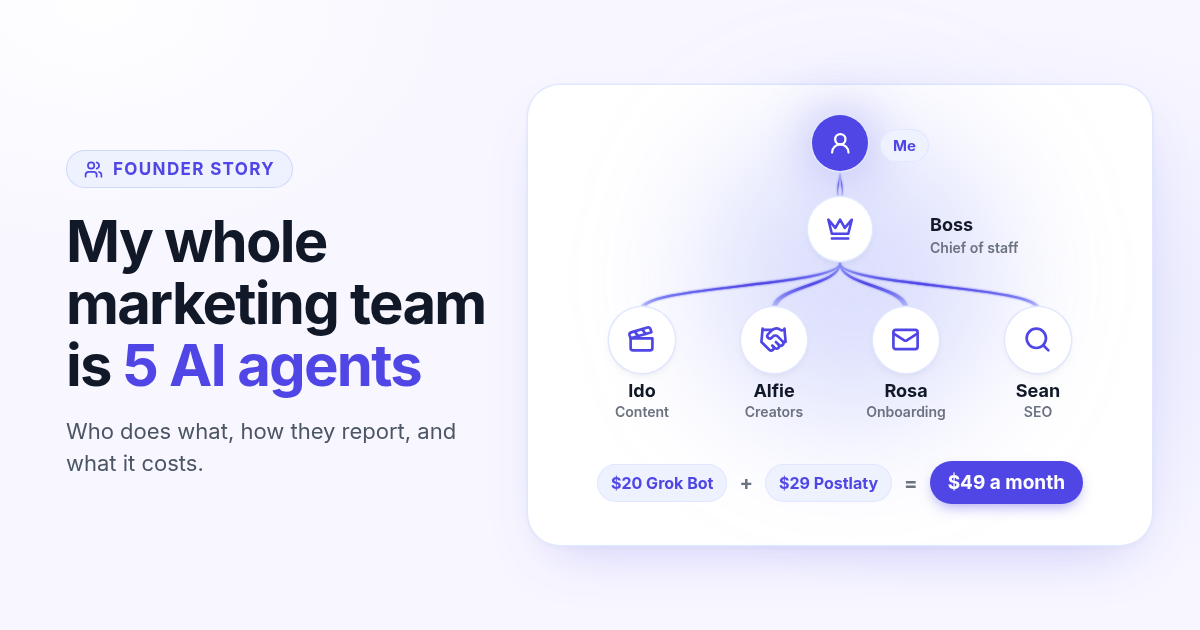
How I run my whole marketing team with AI agents for $49 a month
I am a solo founder. My marketing team is five AI agents that post, reach out, email, and write, then report to me daily. Here is who does what and what it costs.
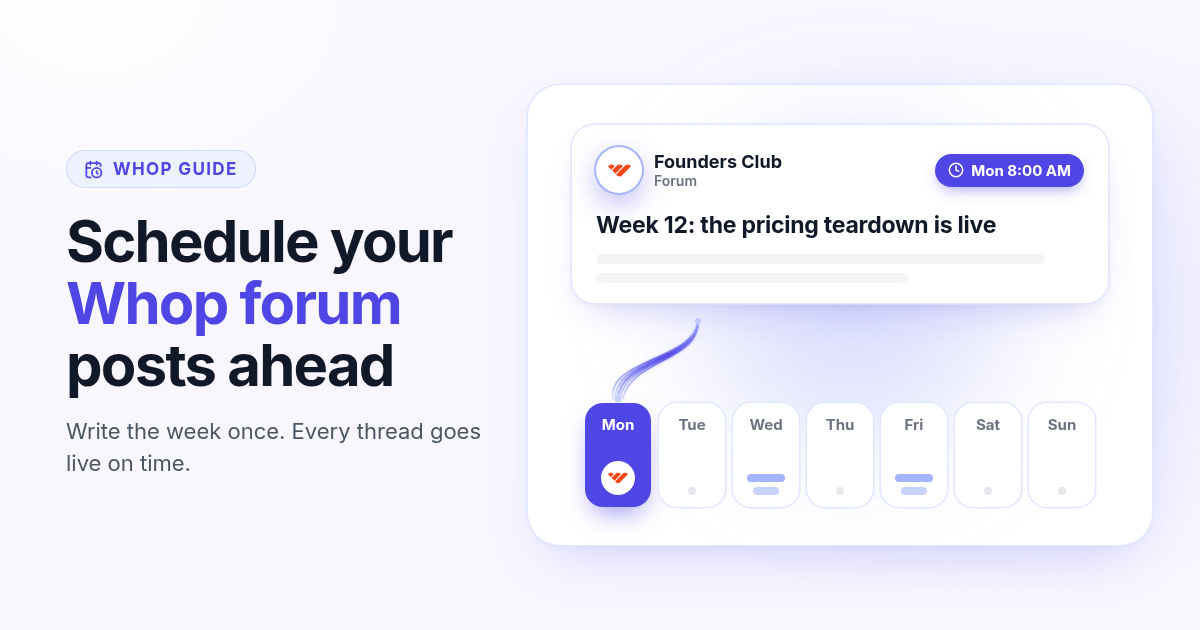
How to schedule Whop posts to your community forum
Whop forums publish when you press Post. Here is how to schedule Whop posts ahead with a company API key, what to write, and how replies reach your inbox.
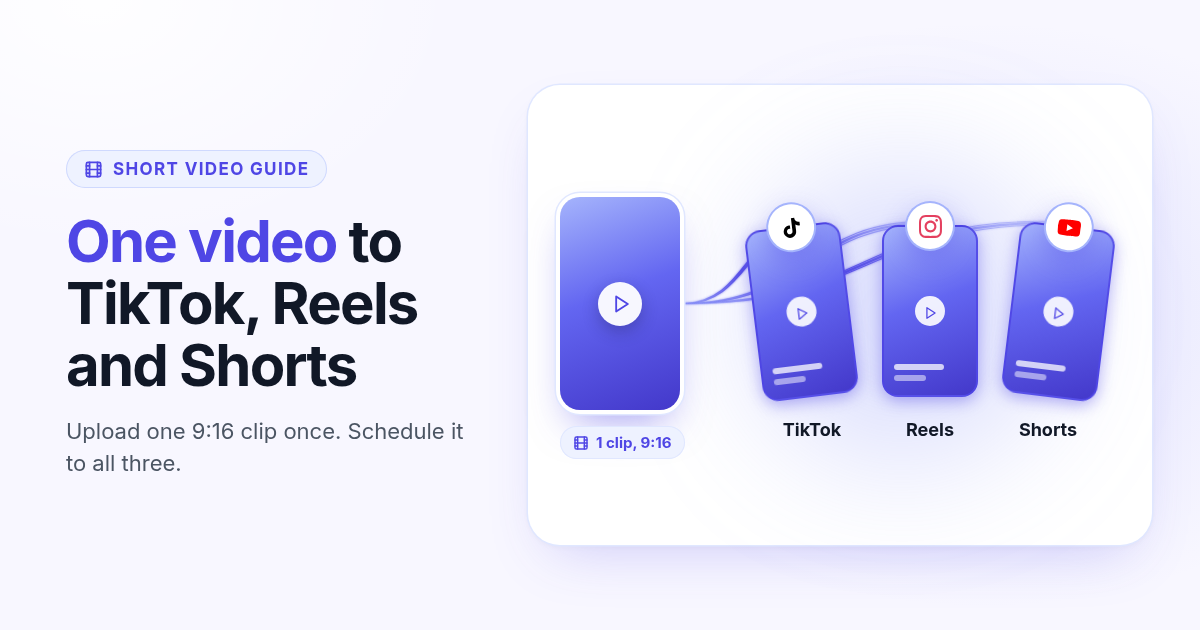
How to post the same short video to TikTok, Instagram Reels, and YouTube Shorts
One 9:16 file can feed TikTok, Reels, and Shorts. This guide covers aspect ratio, captions, covers, and a publish path that does not recrop three times.