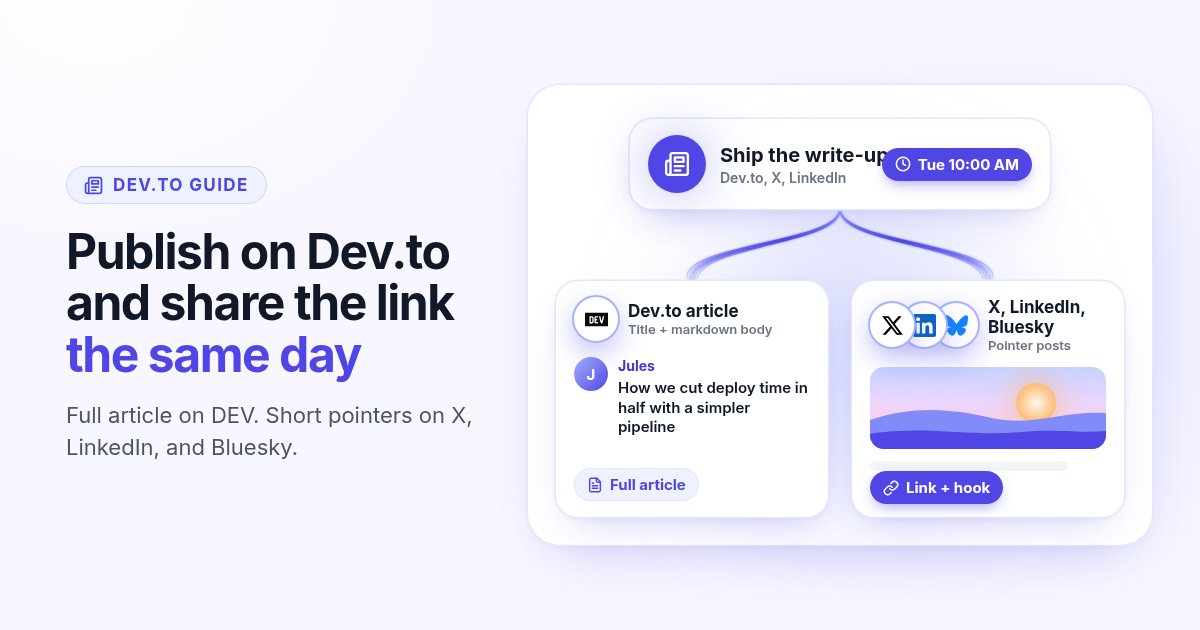
You finish a solid write-up for Dev.to, hit publish, and then the day gets busy. The X post that should point people to it never ships. LinkedIn gets a vague status at 11 PM. Bluesky never hears about it. The article is live, but the people who would read it never get the link.
This guide shows how to schedule a Dev.to article and the short posts that point to it from one queue in Postlaty. You connect with a Dev.to API key, fill the title and body on Create, write a short pointer for X, LinkedIn, or Bluesky, and pick one time (or stagger them by a few minutes). Dev.to gets the article. The social networks get a hook and a link, not a paste of the markdown.
Why the article and the social follow-up drift apart
Writing the article and announcing it feel like two jobs. The Dev.to draft lives in a browser tab. The X and LinkedIn posts live in a scheduler, a notes app, or nowhere. When you publish on Dev.to by hand, the follow-up is easy to skip. When you schedule only the social posts, you still have to remember to publish the article first so the link works.
Readers need the full piece
Dev.to is where the depth lives: the title, the markdown body, the tags people search. A social caption cannot replace that.
Social is the pointer
X, LinkedIn, and Bluesky should carry a hook and the article URL. Pasting the whole markdown into those feeds looks broken and gets cut off.
One clock
When both sit on the same schedule, you publish the article and the pointers together (or stagger by a few minutes) without babysitting two apps.
One place to edit
A shared queue lets you tweak the Dev.to title, the body, and the social captions before anything goes live.
What Dev.to can and cannot schedule on its own
Dev.to lets you save a draft and publish when you are ready. There is no built-in content calendar that also posts a short announcement to X or LinkedIn. Native scheduling on those networks (when it exists) only covers that network. You still end up with two or three calendars.
The useful job is one queue: the full article on Dev.to, and a short pointer on the social profiles that should drive the first readers. That is what Postlaty does. Dev.to shows up next to X, LinkedIn, and Bluesky in Create, and one schedule can include all of them.
Connect Dev.to with an API key
The connection uses Dev.to's official API key (the same key the Forem docs describe). You generate it once in your Dev.to settings and paste it into Postlaty.
- 1
Open your Dev.to extensions settings
Go to dev.to/settings/extensions while logged into the account that should publish.
- 2
Generate an API key
Create a new key, copy it, and store it somewhere safe. Treat it like a password: anyone with the key can publish as you.
- 3
Paste it in Postlaty
Open Create, add a channel, choose Dev.to, paste the API key, and connect. Postlaty verifies it against the Dev.to users/me endpoint before saving.
After that, Dev.to appears as a destination like any other channel. More setup notes are on the Dev.to channel page.
Title and body on Create (not a social caption)
Dev.to publishes an article, not a status update. When Dev.to is selected, Create shows a separate Dev.to title field (up to 120 characters) above the caption. The caption becomes the article body and is sent as markdown. There is no image or video attach for Dev.to: media is not supported on this channel.
Dev.to title
The headline readers see on Dev.to. Keep it clear and searchable. It is stored as the first line when Postlaty sends the article.
Caption = body
Write the article in the caption field. Headings, lists, and code fences work as markdown. Character room is large (up to 100,000).
No media on Dev.to
Postlaty does not upload images or videos to Dev.to. If you need a cover image, add it later in the Dev.to editor, or skip it.
No inbox for Dev.to
Comments stay on Dev.to. Postlaty does not pull Dev.to comments into Inbox. Analytics can still show page views, reactions, and comment counts.
Schedule the article and the pointer posts together
- 1
Select Dev.to plus the social channels
In Create, pick your Dev.to connection and the profiles that should announce it (X, LinkedIn, Bluesky, or a mix).
- 2
Write the Dev.to title and body
Fill the Dev.to title field, then write the full article in the caption. Leave media empty for Dev.to: it will not attach anyway.
- 3
Switch to Different captions
Flip from Same caption to Different captions. Keep the long markdown on Dev.to. Replace the social captions with a short hook and the article URL (or a placeholder you update once the Dev.to URL is known).
- 4
Pick the time and schedule
Choose a date and time, then click Schedule. If you want the article live a few minutes before the pointers, schedule Dev.to first and the social posts as a second schedule a short step later.
Prefer an agent to queue both? Once Dev.to and your social accounts are connected, the Postlaty API and MCP can schedule the same destinations. The agent never sees your Dev.to API key or social logins.
Write pointers, not a second copy of the article
The social posts exist to send people to Dev.to. A tight pattern works better than pasting paragraphs:
X: one sentence and the link
Lead with the problem or the result. Add the Dev.to URL. Stop before you hit the 280-character wall. Thread later if people ask.
LinkedIn: context plus the link
Two or three short lines for why it matters, then the URL. Skip the full markdown and the code blocks.
Bluesky: short hook, then the URL
Stay under the Bluesky limit (Postlaty uses 300 characters). Same idea as X: curiosity first, link second.
Dev.to: the real piece
Title, intro, sections, code samples, conclusion. That is the only place the long form belongs in this workflow.
Tip for the first run: schedule Dev.to a few minutes earlier, copy the live article URL from the publish result or Analytics, then edit the scheduled social captions before they fire. After you have a stable slug pattern on Dev.to, you can put the final URL in the social captions at schedule time.
After it goes live
Check Analytics for the Dev.to article: Postlaty can show page views, reactions, and comment counts from Dev.to. Replies and comments stay on Dev.to itself (there is no Dev.to tab in Inbox). For the social pointers, use Inbox the usual way for X, LinkedIn, and Bluesky replies.
A useful habit: thirty minutes after the schedule fires, answer the first Dev.to comments on the site, then reply to the social threads that asked a real question. Questions that come up twice belong in a follow-up article or an edit to the original.
Good to know
Connect with a Dev.to API key from Settings → Extensions. Postlaty verifies it before saving.
Create shows a Dev.to title field (up to 120 characters). The caption is the markdown body.
Media is not supported on Dev.to in Postlaty. Images and videos go to networks that accept them.
No Postlaty inbox for Dev.to. Comments stay on Dev.to.
Analytics can include page views, reactions, and comments from Dev.to.
Posts publish as live articles (published: true) through the official Dev.to articles API.
See every network Postlaty supports on all channels, or read the X, LinkedIn, and Bluesky channel pages for their caption limits. Cross-posting Bluesky with Mastodon? Read how to cross-post to Bluesky and Mastodon.
FAQ
Frequently Asked Questions
Yes. Connect with a Dev.to API key, fill the Dev.to title and the markdown body on Create, pick a time, and Postlaty publishes the article through the official Dev.to articles API.
Go to https://dev.to/settings/extensions, generate an API key, then open Create, add a channel, choose Dev.to, and paste the key. Postlaty verifies it before saving.
Yes. Select Dev.to and your social accounts together in Create, switch to Different captions, keep the full article on Dev.to, write a short hook plus link for X or LinkedIn, and schedule one time (or stagger).
Not through Postlaty. Dev.to posts are title plus markdown body only. Media is not supported on this channel. Attach images or videos on networks that accept them.
No. Dev.to has no Inbox integration in Postlaty. Comments stay on Dev.to. Analytics can still show page views, reactions, and comment counts.
Create shows a separate Dev.to title field (up to 120 characters) when Dev.to is selected. The caption field is the article body. Postlaty sends title and body_markdown to the Dev.to API.
Blog
More articles
How to schedule a Discord announcement and the public post together
Schedule a Discord announcement and the matching Instagram and X post from one queue. Add the bot to your server, pick the channel, send text to Discord and the visual to the public networks.
How to cross-post to Bluesky and Mastodon (and where video fails)
Cross-post Bluesky and Mastodon from one composer. Connect with an app password and a server token, share one still, and know why a Bluesky video will not publish as Mastodon video.
How to schedule Telegram channel posts as yourself (not as a bot)
Native Telegram schedule works for one message. Most tools post as a BotFather bot. Here is how to connect with your phone, pick a chat, and schedule posts as yourself with Postlaty.
How to schedule Pixelfed posts (a photo is required)
Pixelfed is photo-first and has no real content calendar. Here is how to connect any server with an access token, attach a photo, and schedule posts ahead with Postlaty.
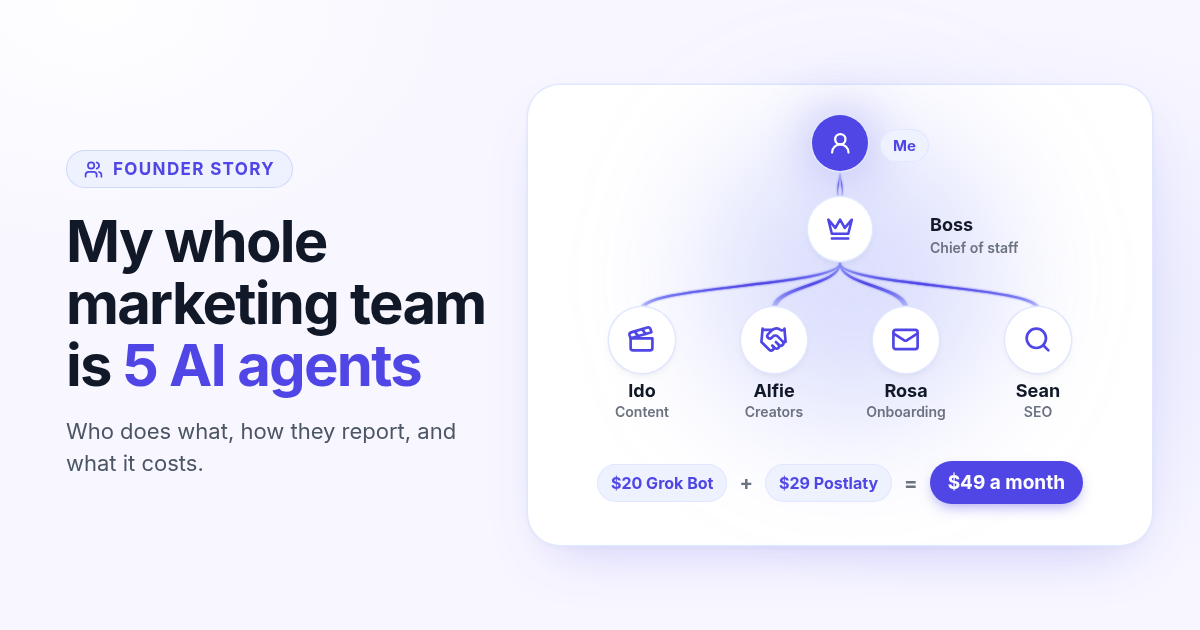
How I run my whole marketing team with AI agents for $49 a month
I am a solo founder. My marketing team is five AI agents that post, reach out, email, and write, then report to me daily. Here is who does what and what it costs.
How to schedule Whop posts to your community forum
Whop forums publish when you press Post. Here is how to schedule Whop posts ahead with a company API key, what to write, and how replies reach your inbox.
How to post the same short video to TikTok, Instagram Reels, and YouTube Shorts
One 9:16 file can feed TikTok, Reels, and Shorts. This guide covers aspect ratio, captions, covers, and a publish path that does not recrop three times.