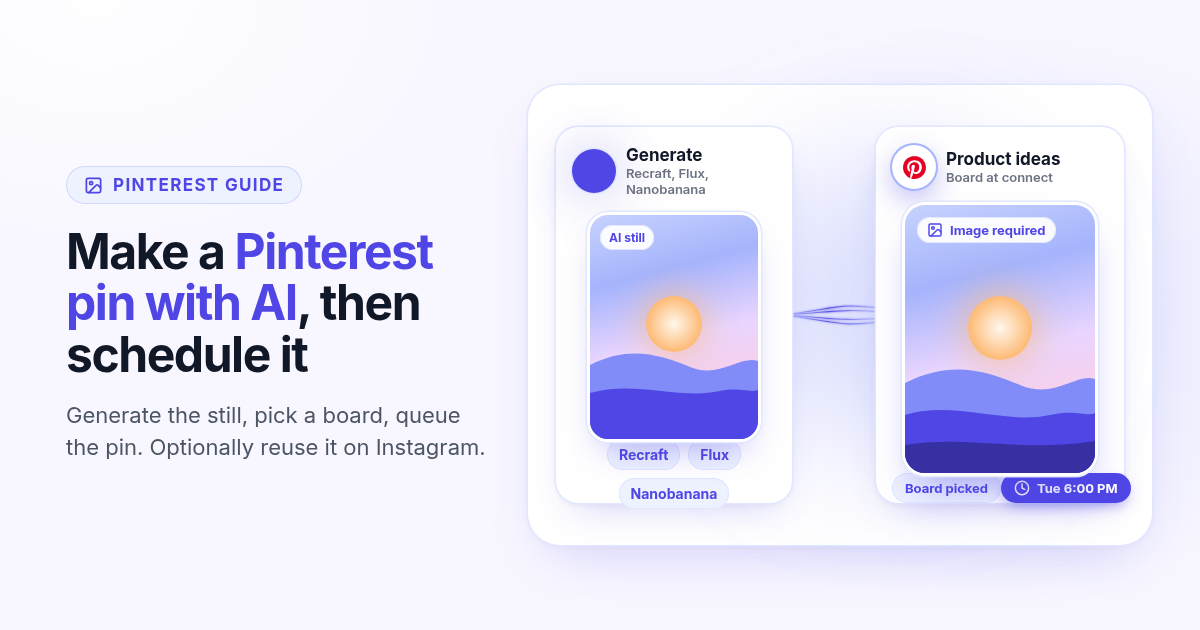
Sellers who care about Pinterest usually need two things at once: a pin graphic that looks intentional, and a board that receives it on time. Autopilot tools that dump every blog URL into a board solve a different problem. If you only need one strong pin (or a short week of them), the honest path is simpler: make the image, pick the board, schedule the pin.
This guide shows how to make a Pinterest pin with AI inside Postlaty, then schedule it to the board you chose at connect. You generate the still with Recraft, Flux, or Nanobanana (or upload your own), attach it on Create, write a short description, and pick a time. Optionally reuse the same file on Instagram. It is not a Tailwind-style bulk autopilot, and it does not invent a pin from a product URL alone.
Why the image comes before the schedule
Pinterest is a visual search engine dressed as a social feed. A text-only update has nowhere to go. In Postlaty, Create blocks a Pinterest send until an image is attached, and the publisher refuses the post if the image is missing. That matches how the Pinterest API expects a pin: a board, a description, and an image URL.
No image, no pin
A caption alone fails. Build or upload the still first, then schedule. Video is not published to Pinterest in Postlaty.
A board is the destination
At connect you pick (or get auto-assigned) one board. That board is where scheduled pins land until you reconnect to another.
AI fills the blank canvas
Recraft, Flux, and Nanobanana sit in Create. Prompt a vertical still sized for the feed, then attach it without leaving the studio.
Queue, do not babysit
Once the file and caption are ready, Schedule puts the pin on the same calendar as Instagram, X, and the rest of your channels.
What native Pinterest scheduling does not cover
Pinterest Business can schedule some pins inside its own tools. That calendar only knows Pinterest. It does not generate the graphic, and it does not keep Instagram, TikTok, or your other networks on the same clock. Bulk tools that refresh boards from every product URL are another category: useful for catalog shops, noisy if you only ship a few intentional pins a week.
The job this article solves is narrower. One pin (or a small batch), made on purpose, queued to one board, with the option to reuse the still where an image is also required. That is the Create workflow in Postlaty.
Connect a Pinterest Business account and pick a board
Pinterest's API is Business-account only. A free Business account is enough. Postlaty connects with an OAuth Allow popup, then asks you to pick a board when you have more than one.
- 1
Use a Business account
Convert or create a free Pinterest Business profile for the brand that should publish. Personal accounts are not supported by the API.
- 2
Connect with Allow
In Postlaty open Create, add a channel, choose Pinterest, and complete the Allow popup. Scopes cover boards and pins (read and write) plus your user account read.
- 3
Pick the board
If you have one board, Postlaty uses it automatically. If you have several, a picker asks which board should receive pins. You can create a board on Pinterest first if none exist.
- 4
Confirm the channel
Pinterest appears in the channel list with the board name as the destination. Reconnect later if you want a different board.
More connection notes live on the Pinterest channel page.
Generate the pin image with AI
Open Create and use the image generator. Postlaty ships several image models, including Recraft, Flux, and Nanobanana (plus Pro variants and others). Prompt the scene you want on the board: product on a clean surface, lifestyle shot, tip graphic, before and after. Prefer a vertical aspect for the feed. Available sizes include 9:16, 3:4, 1:1, 4:3, and 16:9.
Recraft for design-led pins
Strong when you want layout, type-friendly space, and a controlled composition rather than a random photo look.
Flux for photoreal scenes
Useful for product-in-context stills when you describe lighting, materials, and framing in plain language.
Nanobanana for fast drafts
Good for quick concept passes. Generate a few options, keep the winner, regenerate when the crop feels weak.
Or upload your own
AI is optional. A photo you already shot works the same way: attach it as the image, then schedule.
Keep text on the pin short if you burn words into the image. Pinterest also reads the description you write in Create (up to 500 characters). The publisher uses that caption as the pin description and shortens a copy of it for the pin title.
Schedule the pin to your board
- 1
Select Pinterest in Create
Add Instagram too if the same still should go out as a feed or Reel cover later the same day.
- 2
Attach the image
Use the AI still you just made, or upload a file. Create requires an image for Pinterest. Only the first image is sent.
- 3
Write the description
Stay under 500 characters. Lead with what the pin is about, add one searchable phrase, skip a wall of hashtags.
- 4
Pick a time and schedule
Choose when the pin should go live, then click Schedule. It shows on Calendar with your other channels and publishes through Pinterest's pins API to the board you connected.
Prefer an agent to queue pins after the image exists? Once Pinterest is connected, the Postlaty API and MCP can schedule the same destination. The agent never sees your Pinterest tokens.
Reuse the still on Instagram (optional)
The same file can feed Instagram when you want one visual across discovery surfaces. Select Pinterest and Instagram together, attach the image once, and use Different captions if the Pinterest description should stay search-heavy while Instagram gets a shorter social line.
Pinterest needs the image. Instagram can take the same still (or a Reel if you attach video for Instagram only).
Do not attach video as the first file when Pinterest is selected: Postlaty skips video for Pinterest pins.
One schedule time can hit both, or stagger Instagram a few minutes later if you want the pin indexed first.
For short video that must hit TikTok, Reels, and Shorts from one 9:16 file, use the existing guide: schedule one video to TikTok, Instagram, and YouTube. That workflow is separate from a still pin.
After the pin goes live
Check Analytics for impressions, saves, and pin clicks on the Pinterest channel. Pin comments can land in Inbox so you can reply without opening Pinterest for every notification. Direct messages are not part of this path: there are no Pinterest DMs in Postlaty.
Pin comments belong in Inbox. One daily pass is usually enough while you learn which pins earn saves.
No Pinterest DMs in Postlaty. Keep private chats in the Pinterest app if you use them.
Tokens refresh through Pinterest OAuth. If a send fails after a long gap, reconnect the channel and confirm the board.
Good to know
Business account required. Connect with OAuth Allow, then pick a board (or use the only board automatically).
An image is required. Text-only pins fail. Only the first image is published.
Video is not published to Pinterest in Postlaty. Use a still for pins.
Captions go up to 500 characters. The publisher maps the caption to description and a short title.
Pin comments sync in Inbox. DMs do not.
Generate stills with Recraft, Flux, Nanobanana, or other image models in Create, or upload your own file.
Start on the Pinterest channel page, browse all channels, or read the Instagram channel page if you plan to reuse the still. Scheduling photo posts on Pixelfed uses a similar image-first habit in how to schedule Pixelfed posts.
FAQ
Frequently Asked Questions
Yes. Connect a Pinterest Business account with OAuth, pick a board, attach an image on Create, write a description (up to 500 characters), and schedule a time. Postlaty publishes through the Pinterest pins API.
Yes. An image is required. Create blocks a Pinterest send without one, and the publisher errors if the image is missing. Video is not published to Pinterest in Postlaty.
Yes. In Create, generate a still with Recraft, Flux, Nanobanana, or other image models, then attach it and schedule. You can also upload your own photo.
Use a free Business account, open Create, add a channel, choose Pinterest, and complete the Allow popup. If you have more than one board, pick which board should receive pins.
Yes. Select Pinterest and Instagram together, attach the same still, and use Different captions if you want a search-heavy Pinterest description and a shorter Instagram line.
Pin comments can appear in Inbox. There are no Pinterest DMs in Postlaty. Analytics cover impressions, saves, and pin clicks.
Blog
More articles
How to schedule a Dev.to article and the posts that point to it
Schedule a Dev.to article and the short X, LinkedIn, or Bluesky posts that point to it from one queue. Connect with an API key, write the title and body, then ship pointers instead of pasting the markdown.
How to schedule a Discord announcement and the public post together
Schedule a Discord announcement and the matching Instagram and X post from one queue. Add the bot to your server, pick the channel, send text to Discord and the visual to the public networks.
How to cross-post to Bluesky and Mastodon (and where video fails)
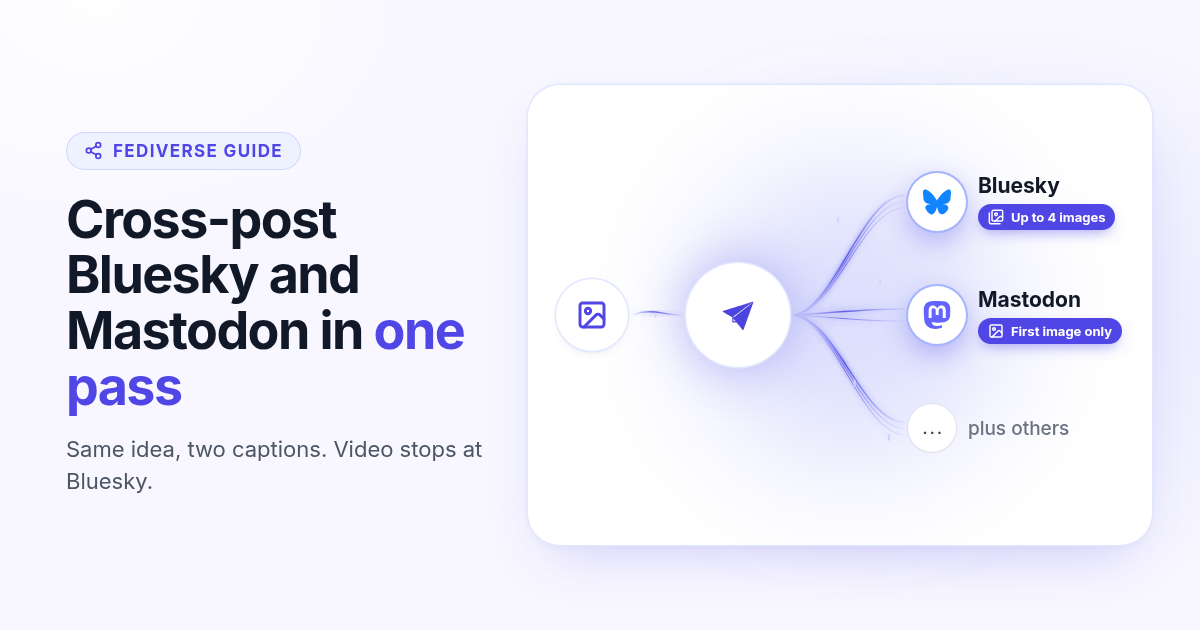
Cross-post Bluesky and Mastodon from one composer. Connect with an app password and a server token, share one still, and know why a Bluesky video will not publish as Mastodon video.
How to schedule Telegram channel posts as yourself (not as a bot)
Native Telegram schedule works for one message. Most tools post as a BotFather bot. Here is how to connect with your phone, pick a chat, and schedule posts as yourself with Postlaty.
How to schedule Pixelfed posts (a photo is required)
Pixelfed is photo-first and has no real content calendar. Here is how to connect any server with an access token, attach a photo, and schedule posts ahead with Postlaty.
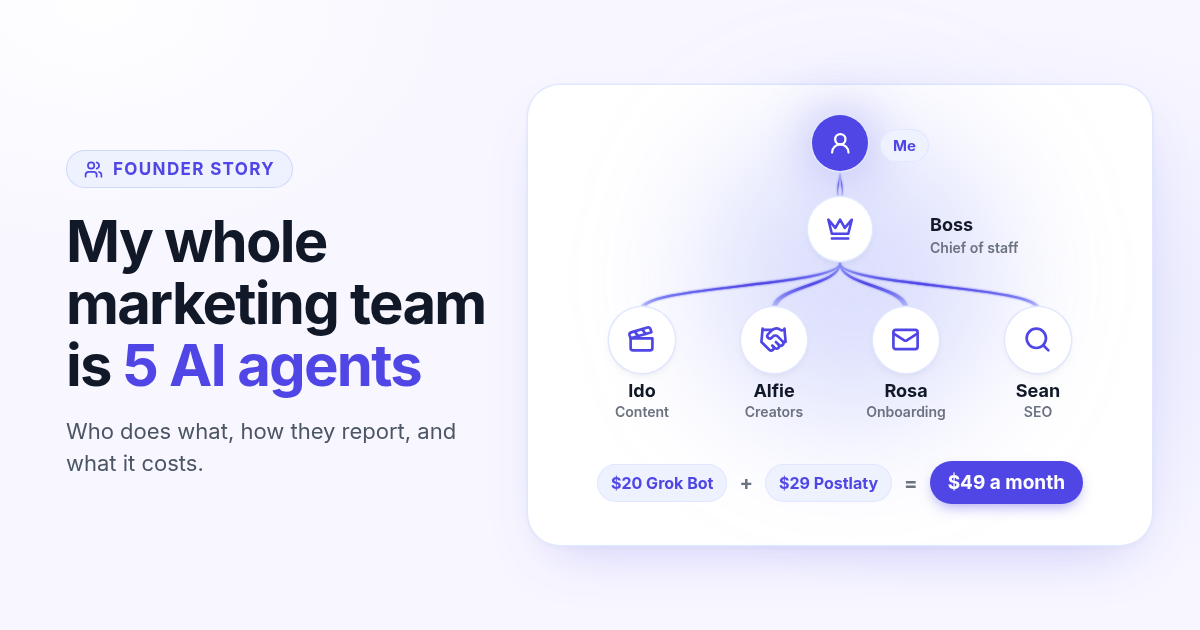
How I run my whole marketing team with AI agents for $49 a month
I am a solo founder. My marketing team is five AI agents that post, reach out, email, and write, then report to me daily. Here is who does what and what it costs.
How to schedule Whop posts to your community forum
Whop forums publish when you press Post. Here is how to schedule Whop posts ahead with a company API key, what to write, and how replies reach your inbox.
How to post the same short video to TikTok, Instagram Reels, and YouTube Shorts
One 9:16 file can feed TikTok, Reels, and Shorts. This guide covers aspect ratio, captions, covers, and a publish path that does not recrop three times.