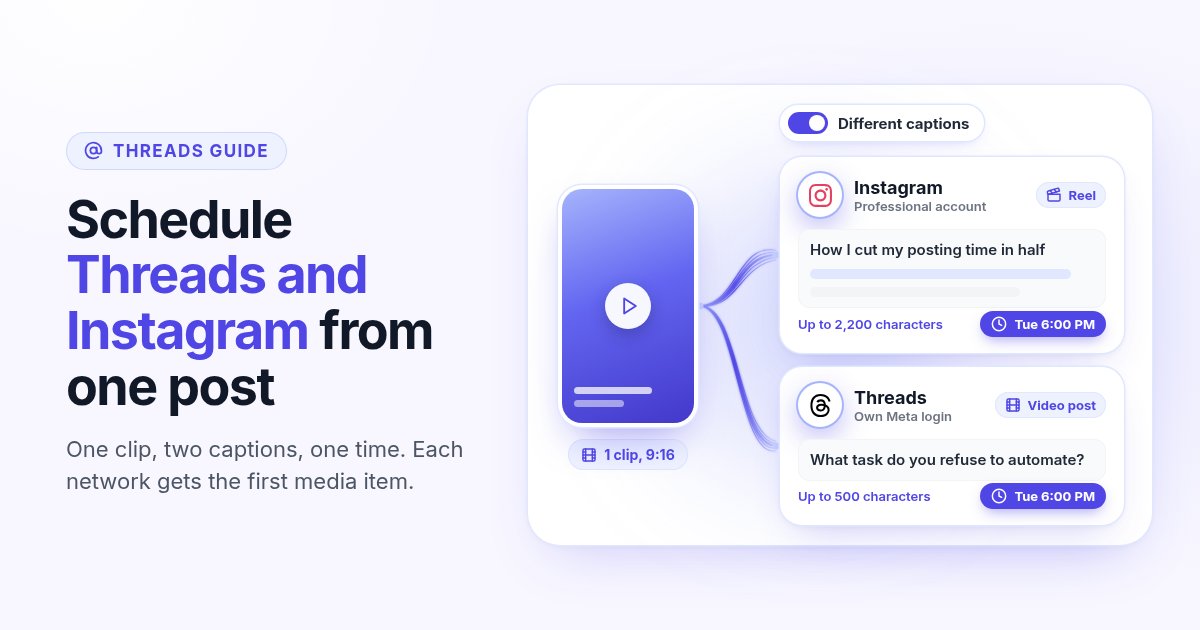
If you already post Reels, Threads is the cheapest extra reach you can get. Same audience graph, same brand, same clip. The problem is the clock. Instagram goes out at 6 PM because you planned it. Threads goes out whenever you remember, usually the next morning, with a caption you rewrote on your phone.
This guide shows how to schedule Threads and Instagram together from one post in Postlaty: connect both accounts, attach one file, write a long Instagram caption and a short Threads caption, and pick one time. It also covers what each network accepts, so the post does not fail at 6 PM while you are offline.
Why Threads belongs on the same clock as your Reels
Threads and Instagram share an account family, but they reward different writing. Instagram is the visual and the caption is supporting copy. Threads is a conversation feed where the first line has to earn the reply. Posting the same Reel to both is smart. Posting it at different times, with a pasted Instagram caption full of hashtags, wastes the second network.
One asset, two feeds
The Reel you already made can lead a Threads post too. No new shoot, no new edit.
Different jobs for the caption
Instagram can carry a long story and a call to action. Threads works best with one sharp line that invites a reply.
Same moment, both places
When both go out together, people who see the Reel and the thread get one consistent message instead of a stale echo.
One place for replies
Comments from Instagram and replies from Threads come back to the Postlaty Inbox, so you answer both from one screen.
What the native schedulers already do
Both apps can schedule on their own. Instagram lets professional accounts schedule posts and Reels, and Threads has its own scheduling option in the composer. If you only post to one of them, use the native tool. It is free and it works.
The gap shows up when the same idea has to land in both places. Each native scheduler only knows its own app. You end up uploading the file twice, writing two captions in two apps, and checking two queues. It gets worse once TikTok, YouTube Shorts, or LinkedIn join the plan, because none of those calendars talk to each other. A shared queue fixes that: one upload, one time, one place to see what is going out.
Connect Threads and Instagram in Postlaty
Threads and Instagram are separate connections in Postlaty, even though both use a Meta login. You approve each one once, then they sit side by side in the channel list.
- 1
Use an Instagram professional account
Instagram publishing works with professional accounts (Business or Creator). If yours is personal, switch it in the Instagram app settings first. It takes a minute and keeps your followers.
- 2
Connect Instagram
In Postlaty, add a channel, choose Instagram, and approve the Meta Allow popup for the account that should publish.
- 3
Connect Threads
Add another channel, choose Threads, and approve its own Meta Allow popup. Threads does not ride on the Instagram connection, so this second step matters.
- 4
Check both channels
Both accounts now show in the channel list. Select them together on Create whenever a post should go to both.
Connection notes for each network live on the Instagram channel page and the Threads channel page.
Pick one file that works on both
The two networks accept different things, and the strictest one decides. Instagram needs media: a caption alone will not publish. Threads is flexible: text only, one image, or one video. Both take one file per post from Postlaty, the first media item you attach.
Video: a vertical clip
A video goes to Instagram as a Reel, shared to your feed. The same file goes to Threads as a video post. A 9:16 clip is the natural fit for both.
Image: a JPG still
For a photo post, use a JPG. Instagram expects an aspect ratio between 4:5 and 1.91:1, so a 4:5 portrait or a square image is the safe choice.
One file, not a carousel
Postlaty publishes the first media item to each network. If you attach several files, only the first one is used here.
Text only? Threads alone
A text post is fine for Threads. Instagram would reject it, so leave Instagram unselected for text-only ideas.
Need the clip first? Generate it in the AI tab with a video model such as Veo, Kling, or Seedance, or a still with Recraft, Flux, or Nanobanana, then attach it on Create. If the same clip should also go to TikTok and Shorts, the guide on scheduling one video to TikTok, Reels and Shorts covers sizes and audio.
Write two captions, not one
Instagram captions can run to 2,200 characters. Threads stops at 500. If you paste a long Instagram caption into Threads, it will not fit, and even a short one reads like an ad on a conversation feed.
On Create, switch the caption toggle from Same caption to Different captions. Each selected network gets its own box with its own character limit.
Instagram caption
Hook in the first line, a few lines of context, a clear call to action, then your hashtags. Use the room you have.
Threads caption
One opinion or question in under 500 characters. Skip the hashtag wall. Write it so someone wants to reply, not just like.
A simple pattern that works: the Instagram caption tells the story behind the Reel, and the Threads caption asks the question the Reel raises. Example: Instagram says how you cut your posting time in half and what changed. Threads asks, "What is the one task you still refuse to automate?"
Schedule both for the same time
- 1
Open Create and select both channels
Tick Instagram and Threads. Add TikTok, YouTube, or others too if the clip belongs there.
- 2
Attach the file
Upload your video or JPG, or pick the one you just generated. Make sure it is the first media item.
- 3
Turn on Different captions
Write the long Instagram version and the short Threads version. Keep an eye on the counter under each box.
- 4
Optional: add a Story
With Instagram selected, the Story toggle also shares the post to your Instagram Story after the feed post is published.
- 5
Pick a time and schedule
Choose the date and time once. Both posts go to the calendar and publish at that time, with no app open on your side.
Prefer to stagger? Schedule the Instagram post first, then duplicate the idea for Threads a little later. Some founders like Threads 30 minutes after the Reel so the thread can point people to it while it is fresh. Either way, both sit on one calendar.
After both posts go live
Instagram comments and Threads replies and mentions land in the Postlaty Inbox. Answer the Threads replies early: that is where the conversation grows.
Compare what each network did with the same asset. If Threads keeps beating Instagram on replies, give it a stronger first line next time.
If a send fails after a long break, reconnect that channel. Each Meta connection keeps its own access, so one can need a refresh while the other is fine.
Good to know
Instagram publishing needs a professional account. Threads and Instagram are two separate connections.
Instagram needs an image or video. Images should be JPG with an aspect ratio between 4:5 and 1.91:1.
Video goes to Instagram as a Reel shared to the feed. Threads takes the same video as a video post.
One file per post on both networks: the first media item you attach.
Captions: up to 2,200 characters on Instagram and 500 on Threads. Use Different captions to write each one.
Want the same idea on more networks? See how to cross-post to Bluesky and Mastodon, browse every network on the channels page, or check pricing before you start your 7-day free trial.
FAQ
Frequently Asked Questions
Yes. In Postlaty, connect both accounts, select Instagram and Threads on Create, attach one image or video, write a caption for each, and pick one time. Both posts publish at that time from the same queue.
No. Both use a Meta login, but they are two separate connections. Approve the Instagram Allow popup and the Threads Allow popup once each, then select both whenever a post should go to both.
Yes. Attach the video once. Instagram publishes it as a Reel shared to your feed, and Threads publishes the same file as a video post. Postlaty sends the first media item to each network.
Usually not. Instagram allows up to 2,200 characters and Threads up to 500. Turn on Different captions on Create, keep the long story and hashtags for Instagram, and write one short line that invites replies for Threads.
Yes. Threads accepts text only, one image, or one video. Instagram needs an image or video, so leave Instagram unselected for text-only ideas.
Yes. Instagram publishing works with professional accounts (Business or Creator). You can switch a personal account in the Instagram app settings before you connect it.
Blog
More articles
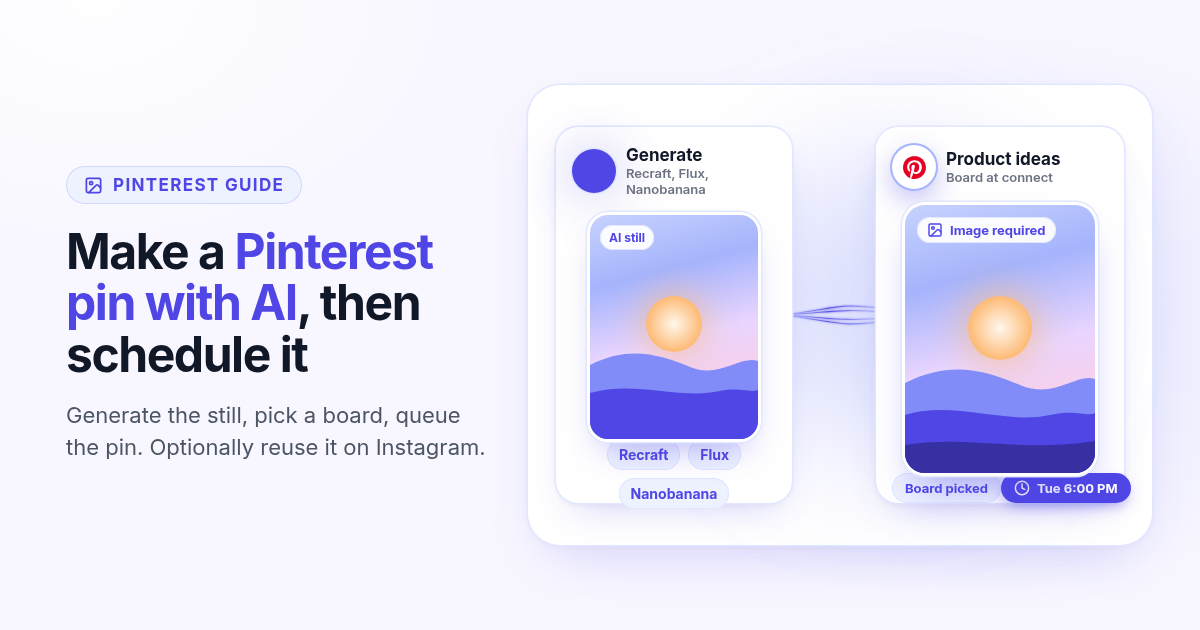
How to make a Pinterest pin with AI and schedule it to a board
Generate a Pinterest pin image with Recraft, Flux, or Nanobanana, pick a Business board at connect, and schedule the pin from Create. Image required. Optionally reuse the still on Instagram.
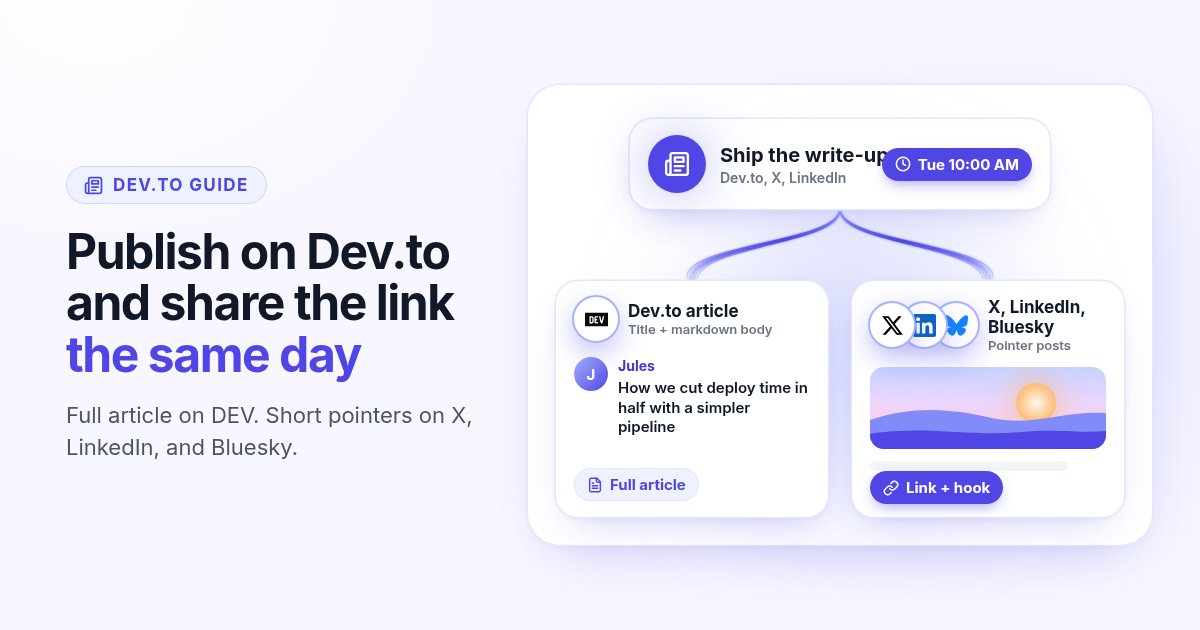
How to schedule a Dev.to article and the posts that point to it
Schedule a Dev.to article and the short X, LinkedIn, or Bluesky posts that point to it from one queue. Connect with an API key, write the title and body, then ship pointers instead of pasting the markdown.
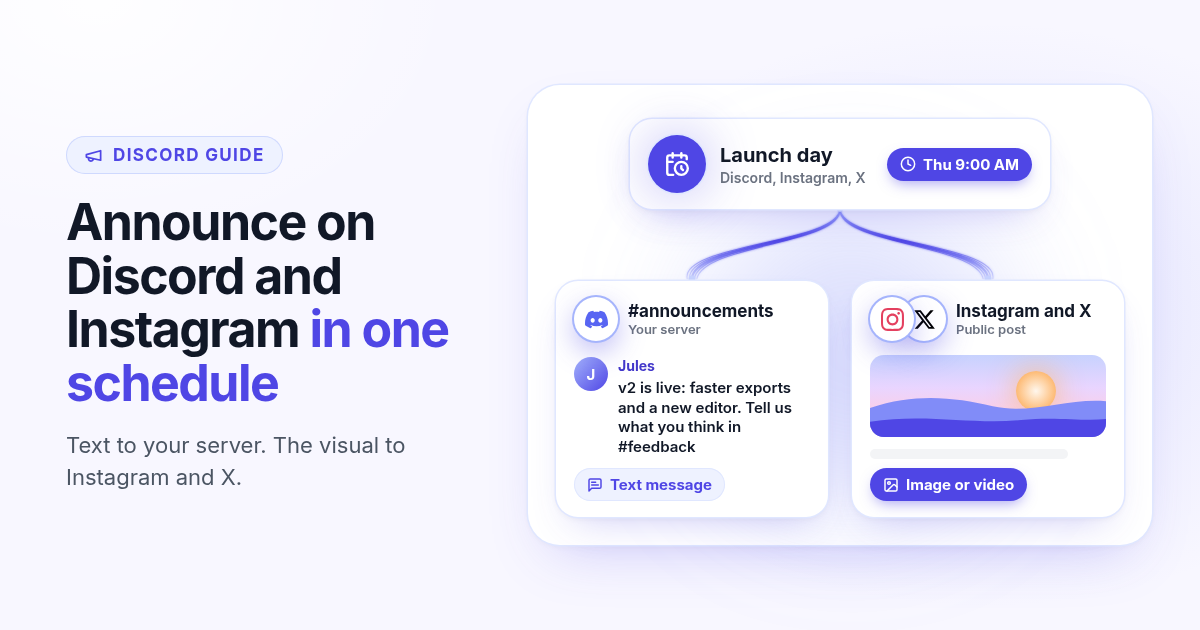
How to schedule a Discord announcement and the public post together
Schedule a Discord announcement and the matching Instagram and X post from one queue. Add the bot to your server, pick the channel, send text to Discord and the visual to the public networks.
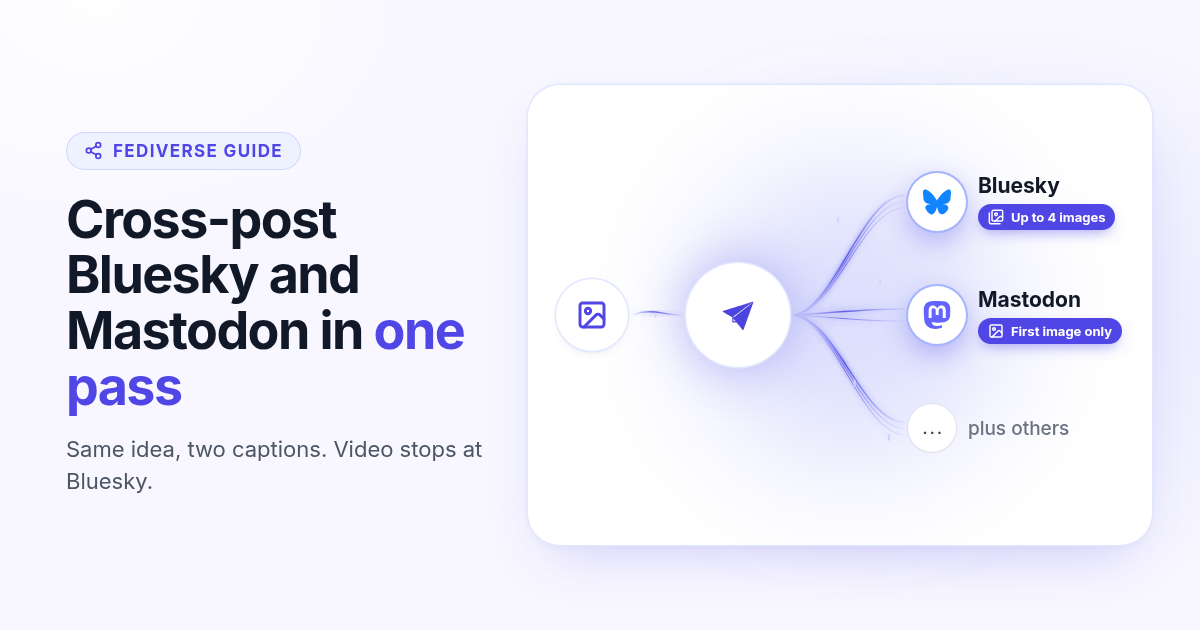
How to cross-post to Bluesky and Mastodon (and where video fails)
Cross-post Bluesky and Mastodon from one composer. Connect with an app password and a server token, share one still, and know why a Bluesky video will not publish as Mastodon video.
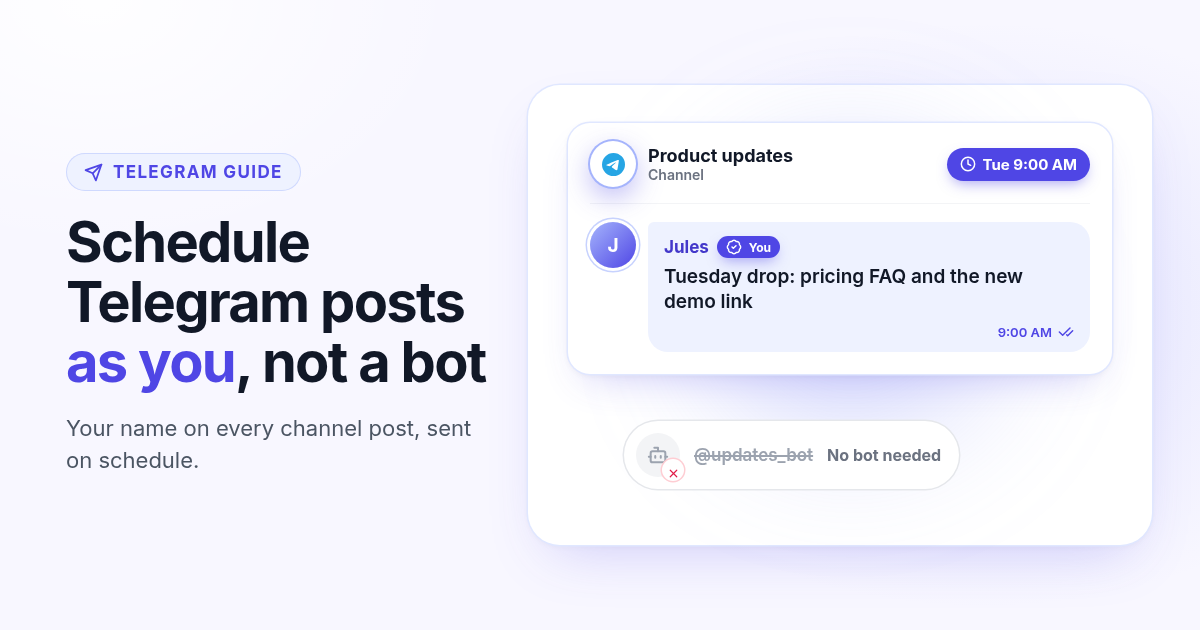
How to schedule Telegram channel posts as yourself (not as a bot)
Native Telegram schedule works for one message. Most tools post as a BotFather bot. Here is how to connect with your phone, pick a chat, and schedule posts as yourself with Postlaty.
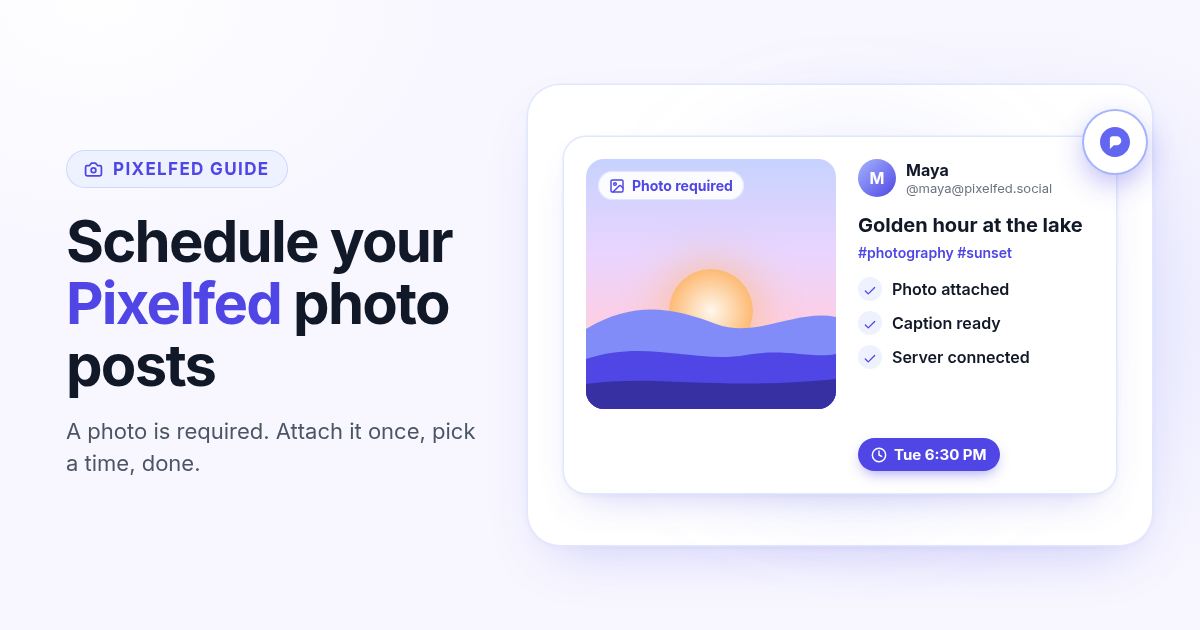
How to schedule Pixelfed posts (a photo is required)
Pixelfed is photo-first and has no real content calendar. Here is how to connect any server with an access token, attach a photo, and schedule posts ahead with Postlaty.
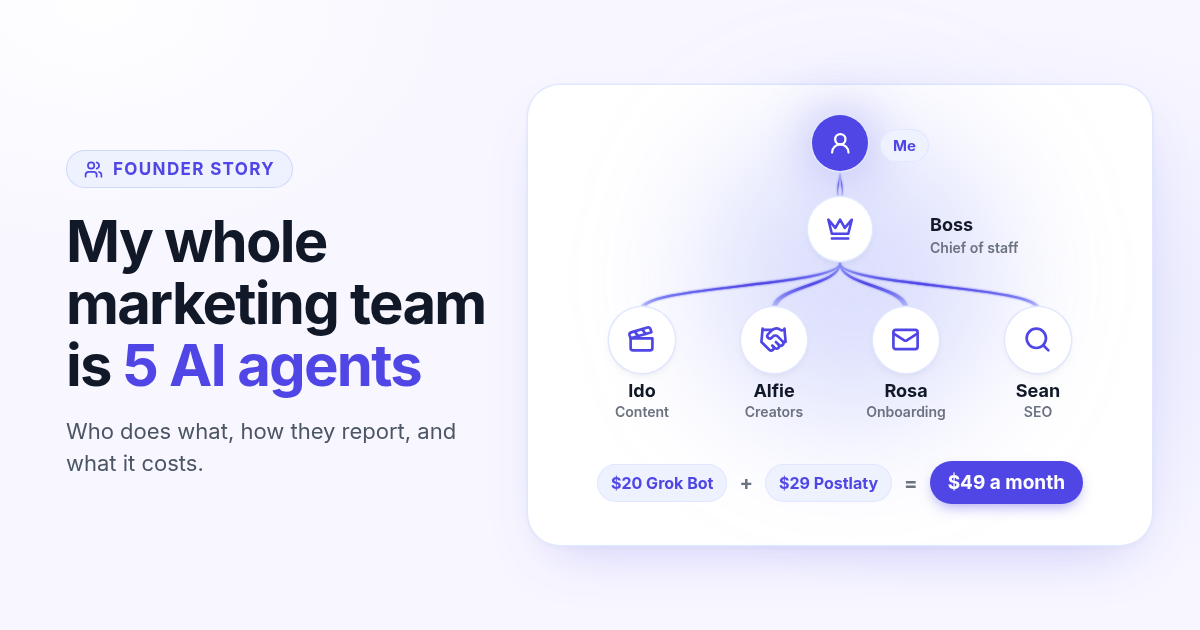
How I run my whole marketing team with AI agents for $49 a month
I am a solo founder. My marketing team is five AI agents that post, reach out, email, and write, then report to me daily. Here is who does what and what it costs.
How to schedule Whop posts to your community forum
Whop forums publish when you press Post. Here is how to schedule Whop posts ahead with a company API key, what to write, and how replies reach your inbox.
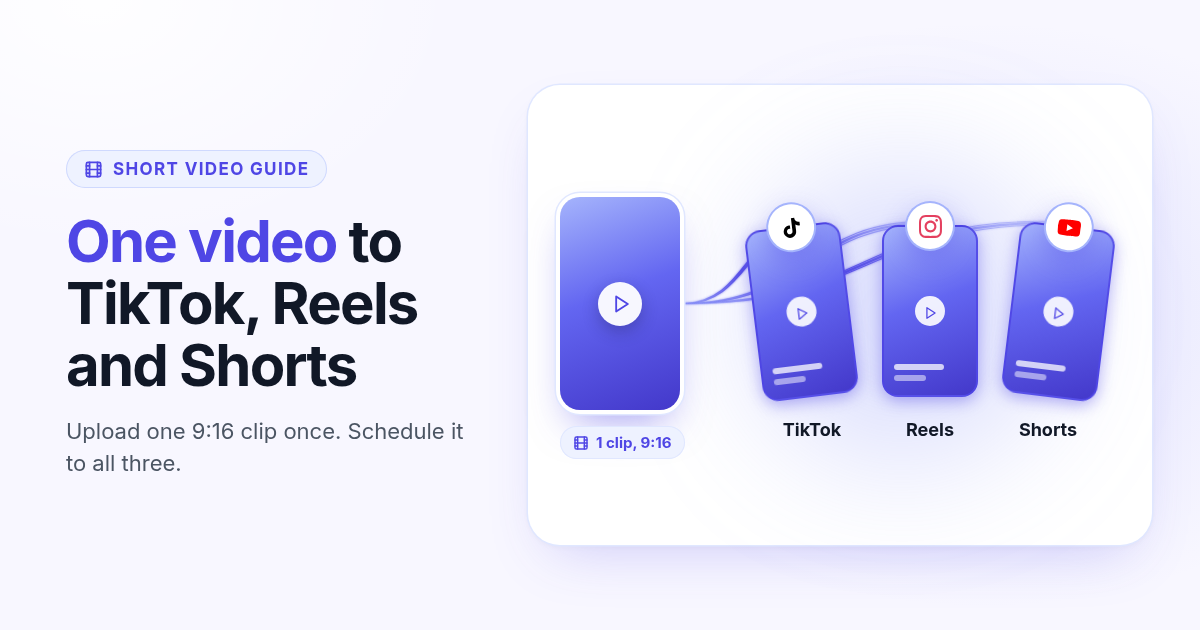
How to post the same short video to TikTok, Instagram Reels, and YouTube Shorts
One 9:16 file can feed TikTok, Reels, and Shorts. This guide covers aspect ratio, captions, covers, and a publish path that does not recrop three times.